How to resolve NEWARE BTS software installation failure?
Solution 1: Check if the computer configuration meets the requirements.
Before installing BTS, please ensure that your computer meets the following requirements:
CPU: Intel Core i5 or higher.
RAM: 8GB or more.
Hard Drive Space: 1TB or more.
Operating System: It is recommended to install Windows 7 64-bit, Windows 10, or Windows 11 64-bit.
* If you are using a new computer and need to partition your memory space, please make sure that there is at least 400GB of available space on a disk other than the system disk for software installations.
Solution 2: When installing, it's necessary to disable the firewall and antivirus software.
Solution 3: If there is an issue with the software installation path, change the path (or rename the previous path) and then reinstall the software.
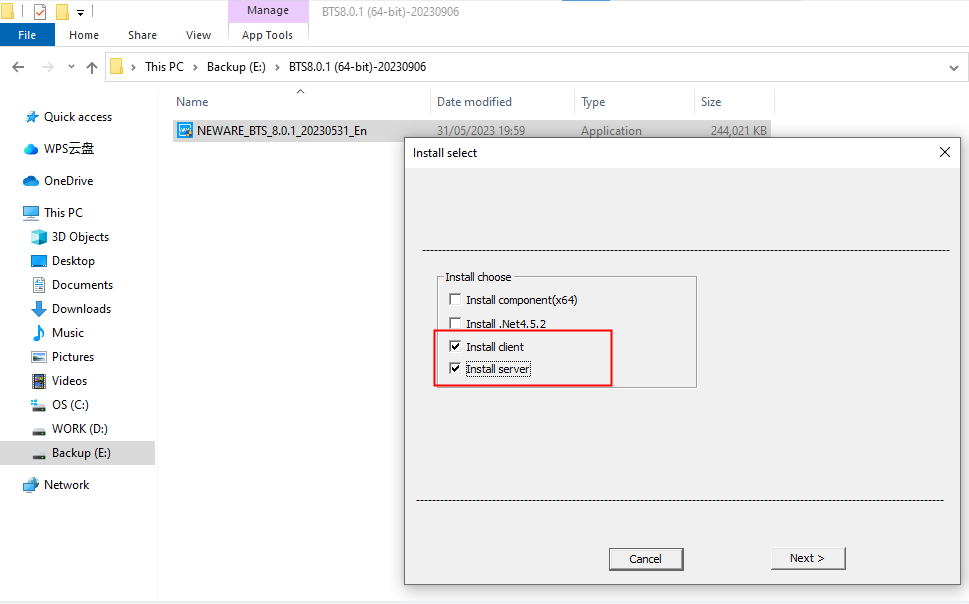
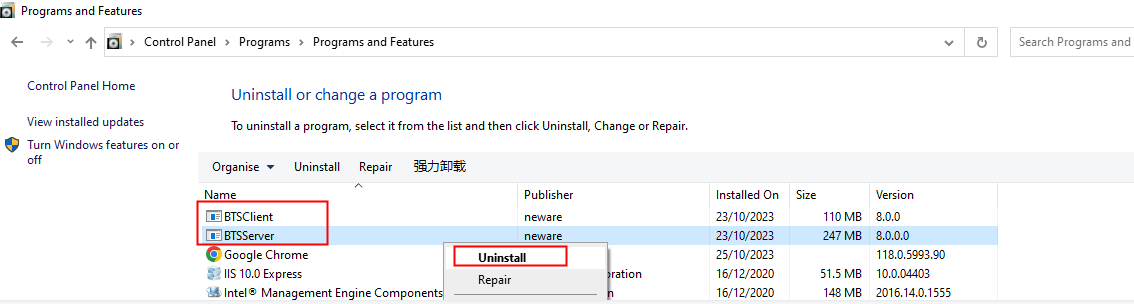
1. First, uninstall both the client and server.
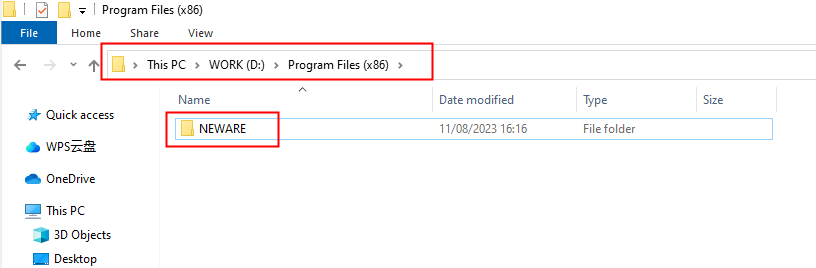
2. Open the software installation directory and rename the NEWARE folder.
3. Reinstall both the server and client.